How do I check if my computer hardware is a bottleneck?

When your computer feels slow, one of the first things to check is whether a particular part of your computer is holding everything up.
You don't need to understand every graph or number, but just knowing what to look for can help you work out why your computer is struggling.
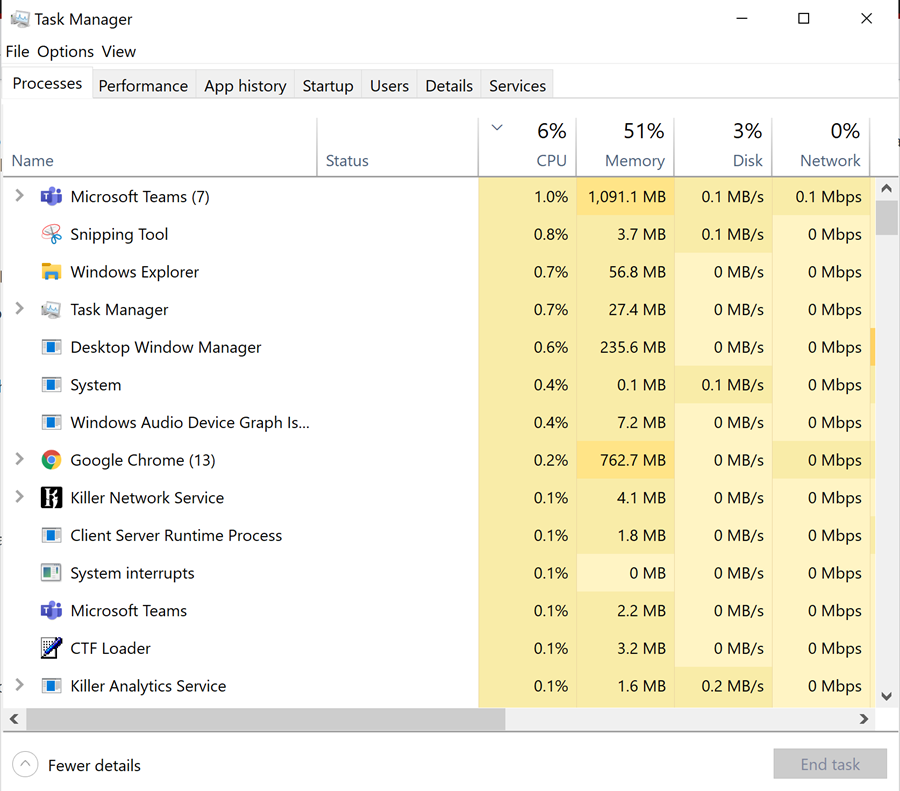
Windows
Press Ctrl + Shift + Esc on your keyboard.
If Task Manager opens in the small simplified view, click More details.
Select the Processes tab at the top.
Click on the CPU, Memory, Disk, and Network headings along the top to sort them from high to low. You might have to click twice if it sorts the wrong way.
Look for any individual components that are being used considerably more than others. If the usage is above 80-90%, this is likely your bottleneck slowing everything else down. Usually high usage is highlighted in red for easy identification.
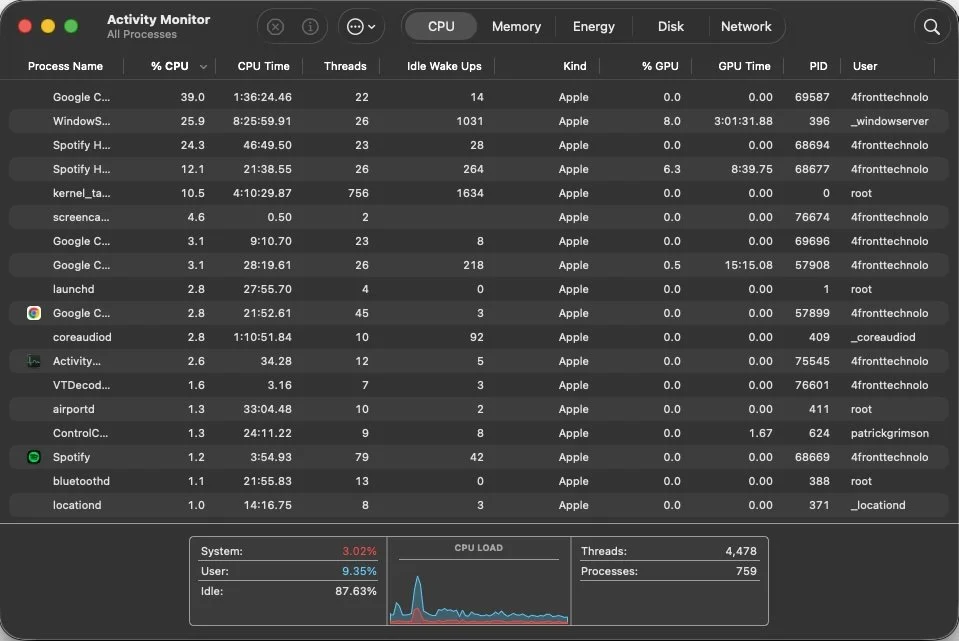
MacOS
Press Command + Space on your keyboard.
Type “Activity Monitor” and press Enter.
Click through the CPU, Memory, Disk, and Network tabs.
Click on %CPU, Memory, Bytes Written/Read, and Sent Bytes/Rcvd Bytes headings respectively to sort them from high to low. Also reference the graphs at the bottom of each tab.
Look for any individual components that are being used considerably more than others. If the usage is above 80-90%, this is likely your bottleneck slowing everything else down.
If one part of your computer is constantly working at or near 100%, you've taken the first step towards finding the cause of the problem. Now you can check if this part can be upgraded for a cost efficient option, or focus on the bottlenecked component when researching your next computer. If you're not sure what the results mean or how to fix them, we're always happy to help diagnose the issue.