What do computer specs mean?
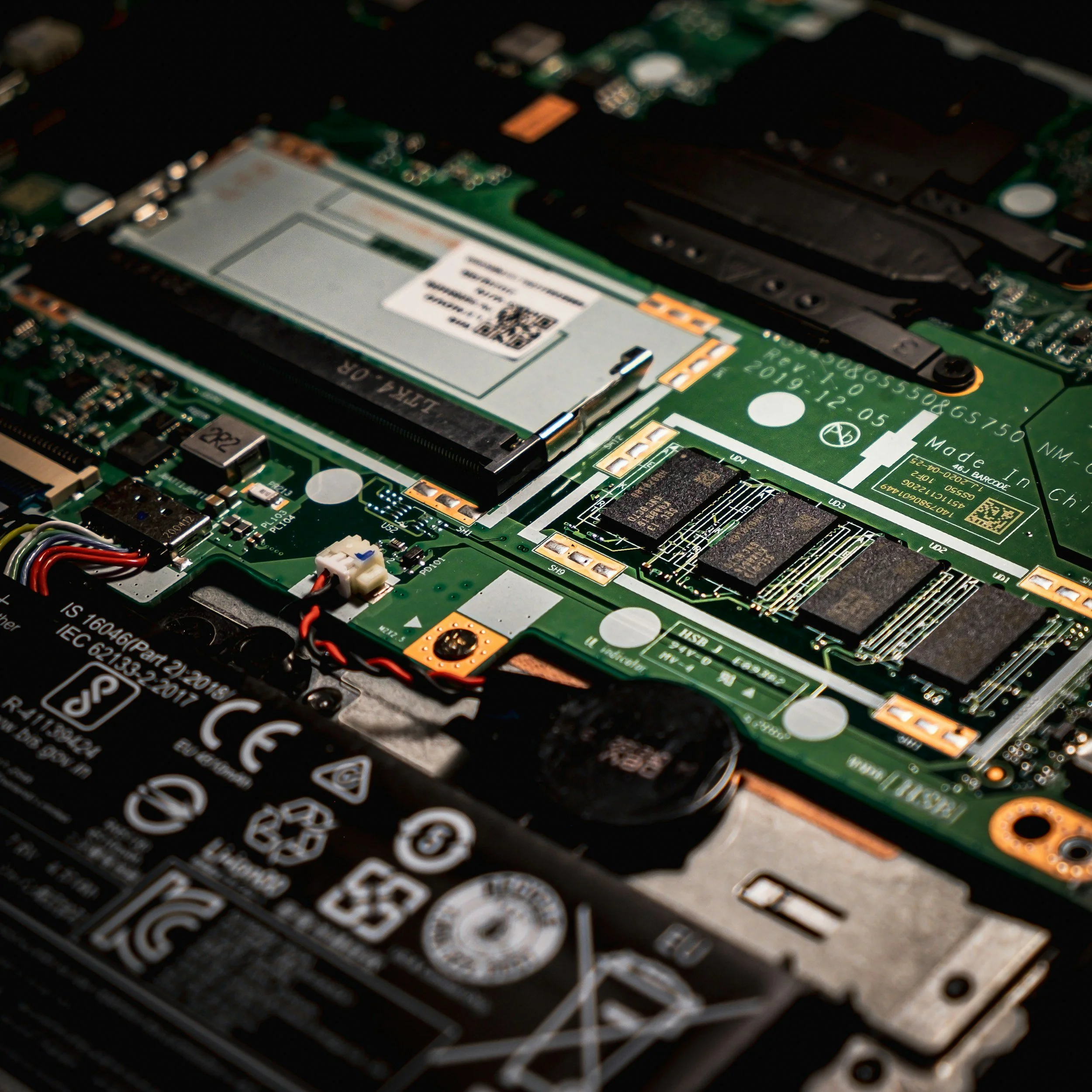
Shopping for a computer can be overwhelming when every model is advertised with technical jargon like Intel Core i7, 16GB RAM, 1TB SSD, and dedicated graphics.
The good news is that you don't need to understand every specification. Knowing what a handful of key components do will help you choose the right upgrade or new computer and avoid expensive mistakes.
CPU - Processor
The CPU (Central Processing Unit) is essentially the brain of your computer. It processes instructions from your programs and tells the rest of the hardware what to do. A faster processor can handle more tasks at once and makes your computer feel more responsive, particularly when multitasking, browsing the web with lots of tabs open, or running demanding applications.
RAM - Memory
RAM (Random Access Memory) is the short term memory of the computer and can be likened to a desk: the more RAM, the bigger the desk, so the more files you can have open at once without having to close them and find them again later. When your desk becomes full, your computer has to move some of that information to your storage drive (think a filing cabinet), which is much slower than keeping it in RAM. This is why computers with too little RAM often feel sluggish when multitasking, as it goes looking for your open files on the storage drive and brings them back to memory.
SSD/HDD - Storage
SSDs (Solid State Drives) are the modern replacements for traditional HDDs (Hard Disk Drives). HDDs look a bit like a record player inside with an arm that hovers over spinning disks to search for information. HDDs are usually cheaper for larger capacities, but significantly slower and are therefore best suited to storing old less frequently accessed files. SSDs have no moving parts, allowing them to access data much more quickly than traditional hard drives. This makes your computer start faster, programs open sooner, and everyday tasks feel much more responsive. If your computer is still using a HDD for storage, replacing it with an SSD is a cost effective way to make an extreme improvement to its performance.
GPU - Graphics
The GPU (Graphics Processing Unit) is responsible for rendering images, videos, and graphics. For everyday tasks like browsing the web, checking emails, or using Microsoft Office, the graphics built into most modern processors are more than sufficient. If you play modern games, edit videos, or work with 3D software, a dedicated graphics card from AMD or NVIDIA will provide much better performance.
Screens
Screens have a few different specs to be aware of:
Panel Type - This is the variety of screen installed on your computer. Look for something with IPS (In-Plane Switching) for every day use or Mini-LED or OLED (Organic Light Emitting Diode) for the best colours and darkest blacks. We would recommend steering clear of the old TN (Twisted Nematic) panels as they usually have worse colours and cannot be seen from off-axis very well.
Brightness - This is how bright the screen gets, often measured in cd/m² or nits. If you want to use your computer in a bright environment or outdoors, look for something with a higher brightness level. 250 nits is typical for budget office laptops and is suitable for indoor use. If you regularly work near windows or outdoors, aim for 400–500 nits or higher.
Resolution -Resolution is written as the number of pixels across the screen multiplied by the number of pixels down the screen (horizontal pixels x vertical pixels). The resolution will determine how clear your screen is and how much you can see at once. Higher resolutions (like 2560×1440 and 4K) will look clearer but often take more power from the GPU to run. For laptops, anything above 1920×1080 is typically decent for office work, where larger screens for desktops or monitors usually look better at 2560×1440 (2K/QHD) or above. This is usually highly dependent on your personal preference.
Aspect Ratio - The aspect ratio describes the shape of your display. A 16:9 screen is wider, making it great for watching videos, while a 16:10 screen is slightly taller, allowing you to see more of a document, spreadsheet, or webpage without scrolling. For example, a 16:9 display could have a resolution of 1920×1080, but a 16:10 ratio could be 1920×1200.
It is important to remember that a computer is only as good as the combination of its parts. A laptop with 32GB of RAM but an old mechanical hard drive can feel much slower than one with 16GB of RAM and a fast SSD. Rather than focusing on a single impressive specification, consider how all the components work together and meet your needs. This is why we get to know your needs first and don’t blanket recommend particular specs.